
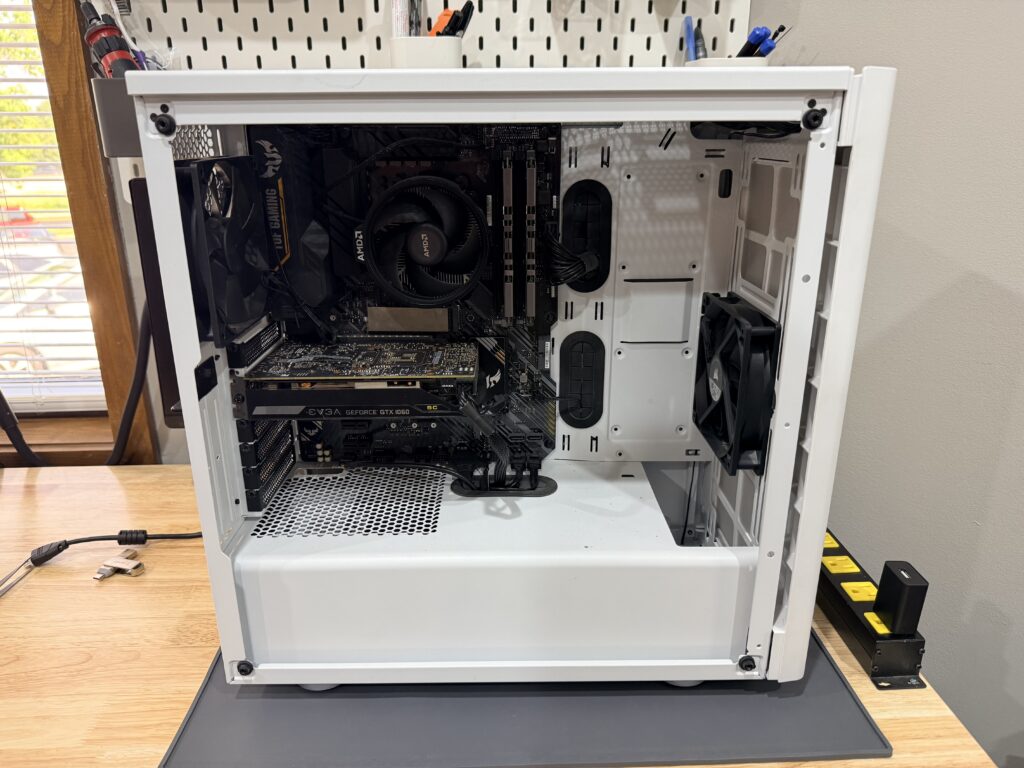
You press the power button. The fans spin up, the RGB kicks on, and then… nothing. No logo, no display, and if your motherboard has those four little LEDs, one of them is sitting there glowing at you like it knows something you don’t.
It does, actually. That’s a failed POST — the power-on self-test every PC runs before it will boot — and the machine stopped because it found a component it couldn’t talk to. We see this at the bench in Blue Springs just about every week, and here’s the reassuring part up front: a no-POST gaming PC is almost always fixable, and it’s usually one of the same four or five culprits.
What the debug lights actually mean
Most modern boards — ASUS, MSI, Gigabyte, ASRock — have four small LEDs labeled CPU, DRAM, VGA, and BOOT. Whichever one stays lit marks the stage where startup stalled.
DRAM is the one we see most. A memory stick that walked slightly out of its slot, or new RAM the board isn’t happy with. VGA points at the graphics card — seating, power cables, or occasionally the card itself. CPU is the serious one: sometimes just a forgotten power connector, sometimes a bent pin, and it deserves the most caution. BOOT is actually good news in disguise — the hardware passed its checks and the machine simply can’t find a drive to start from.
Older or budget boards may have no LEDs at all, just beep codes through a little speaker. Different language, same message.
What you can safely check yourself
Unplug the power cord first, then press the case power button once to drain what’s left in the capacitors. Then, in order:
Reseat the RAM. Pop the clips, pull each stick, push it back until both clips snap on their own. Two sticks? Try booting on one at a time. Last month a customer brought in a build that had been dead for two weeks; one stick had lifted a millimeter during a move across town. Thirty seconds, fixed.
Reseat the graphics card and check its power. Half-clicked PCIe power cables are the classic no-display cause. Push until you feel the latch.
Check both motherboard power connectors. Everyone remembers the big 24-pin. The 8-pin CPU cable up by the top corner is the one that gets forgotten after upgrades.
Undo the last change. If this started right after new hardware went in, put the old part back. If the machine wakes up, you’ve found your answer — and possibly just a compatibility issue, not a dead part.
When to stop and bring it in
Three hard stops. If the CPU light stays on after checking its cable — diagnosing further means pulling the cooler and inspecting the socket, where one slipped screwdriver turns a modest repair into a motherboard replacement. If you smell anything burnt or the machine clicks and shuts off — that’s power delivery, and repeated attempts can take healthy components down with it. And honestly, after the reseats above — past that point, real diagnosis means swapping known-good parts one at a time, which is exactly what a bench full of tested spares is for.
That’s what we do here: known-good power supply, memory, and graphics card, isolate the actual failure, and hand you a written quote before anything gets replaced. Diagnosis within 24 hours or the diagnostic’s free — and your build leaves tested, documented, and cleaner than it arrived.
Outside the Kansas City area? Ship it to our bench with mail-in gaming PC repair: same $60 diagnostic, insured return shipping. Related guide: Is your computer worth repairing?