
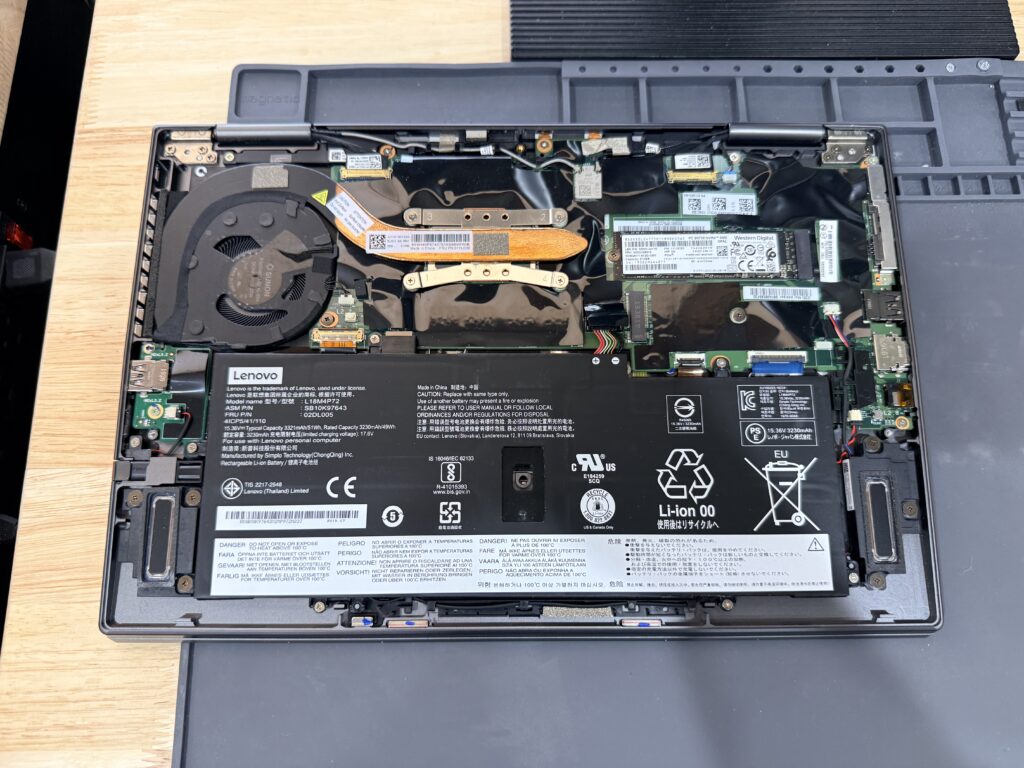
Few things produce a faster sinking feeling than a laptop that won’t turn on. You press the button — nothing. Or maybe the light comes on, the fan gives a little whir, and the screen stays black. Either way, everything on that machine suddenly feels very far away.
Take a breath. At our bench in Blue Springs, “dead” laptops come in every week, and the honest truth is that most of them aren’t dead at all. The trick is figuring out which of two situations you’re in, because they point in completely different directions.
First question: no power at all, or power but no display?
Look and listen closely when you press the button. Truly nothing — no lights, no fan, no sound — points at the power chain: charger, charging port, or battery. Something but no picture — a power light, fan noise, maybe a keyboard glow — means the laptop is alive and the problem sits further in: memory, display, or a machine that’s actually running with a black screen. Knowing which one you have doubles the usefulness of everything below.
If there’s no power at all
Try a different outlet, then inspect the charger. Frayed cable near the plug, a loose barrel, a charger that runs cold when it usually runs warm — chargers fail far more often than laptops do. If you can borrow a matching one, that’s the single most valuable test you can run. A customer came in yesterday ready to replace a laptop that turned out it’s only issue was a dog chewed, frayed charging cable.
Look at the charging light while plugged in. No light at all, or one that flickers when you wiggle the connector, points at the charging port — a common and very repairable failure, especially on machines that get carried around plugged in.
Try a hard reset. Unplug the charger, then hold the power button down for a full thirty seconds. On laptops with removable batteries, pull the battery first. This drains stuck power states — it sounds like folklore, and it revives more laptops than you’d believe.
If it powers on but the screen stays black
Listen for signs of life. Windows chime? Fan settling into a steady hum? Shine a flashlight at the screen at an angle — if you can faintly see your desktop, the backlight has failed, not the laptop.
Connect an external monitor. Picture on the external display means the laptop is fine and the problem lives in the screen or its cable — a well-understood repair, not a lost machine.
Reseat the memory if you’re comfortable. On laptops with an access panel, a RAM stick nudged loose — often after a drop — produces exactly this: power, no picture. Same rule as desktops: unplug first, press the power button once, then reseat until the clips snap.
When to stop and bring it in
Stop immediately if there was liquid involved — power off, unplug, don’t retry; every restart with moisture inside does more damage, and speed matters. Stop if the laptop won’t hold a charge, gets unusually hot, or the case is bulging — a swollen battery is a safety issue, not a tinkering project. And stop if none of the checks above changed anything, because the next steps — board-level power diagnosis, display replacement, data-safe drive work — need bench equipment and known-good parts.
The thing most people are actually worried about is the stuff on the laptop, so it’s worth saying plainly: a laptop that won’t turn on almost never means lost files. We handle the machine with a $60 diagnostic and a written quote within 24 hours — and nothing gets wiped, reset, or replaced without your written approval. If the laptop’s beyond sensible repair, your data usually isn’t, and we’ll tell you both truths straight.
Outside the Kansas City area? Ship it to our bench with mail-in computer repair: same $60 diagnostic, insured return shipping. Related guide: Spilled water on your laptop? Do this first