
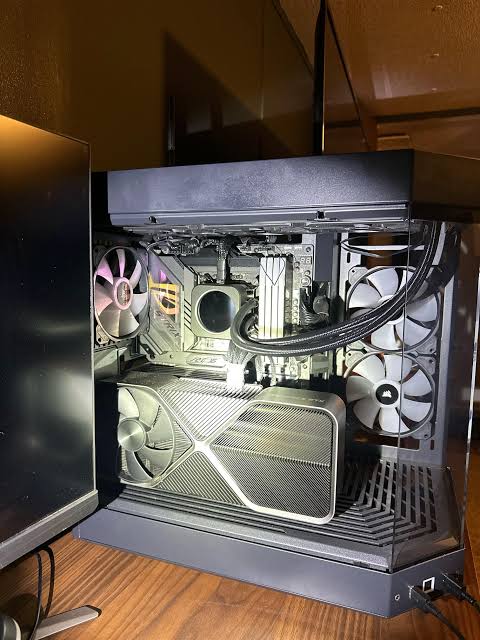
The fans sound like a jet engine, frame rates drop after twenty minutes of play, or the PC shuts off in the middle of a match. Overheating is one of the most common gaming PC problems, and one of the most fixable. The first step is knowing what “too hot” actually means, because modern hardware runs hotter than most people expect.
How hot is too hot?
These are general ranges for a desktop gaming PC running a demanding game. Exact limits depend on the model, so check the manufacturer’s specs for your processor and graphics card.
| Component | Normal while gaming | Worth investigating |
|---|---|---|
| Processor (CPU) | Roughly 60–85°C | Sitting at 90°C or more and slowing down. Some current AMD Ryzen and Intel chips are designed to run up to about 95–100°C under heavy load, so check your model. |
| Graphics card (GPU) | Roughly 60–83°C | 85°C or more on the main reading |
| GPU hotspot | Usually 10–20°C above the main GPU reading | 100°C or more, or a gap of 25°C or more over the main reading. That gap often means dried paste or poor cooler contact. |
| Graphics memory (memory junction) | Up to about 90–95°C on many cards | 100°C or more |
The key word is sustained. A brief spike means little. Temperatures that climb and stay near the limit during gaming are what cause throttling, where the hardware slows itself down and your frame rate drops, and eventually shutdowns.
What actually makes a gaming PC overheat
- Dust. Dust packs into heatsink fins, fan blades, and filters until air can’t move through. A PC that ran cool when it was new and runs hot two years later is usually just dirty.
- Dried-out thermal paste. The paste between the processor and its cooler dries out over the years. The paste and pads inside a graphics card can degrade too.
- A failing AIO liquid cooler. AIO pumps wear out, and coolant slowly evaporates over years. A pump that has stopped or slowed lets CPU temperatures shoot up even though the radiator fans are still spinning.
- Airflow that works against itself. Fans installed backwards, a solid glass front panel with little room for intake, or a radiator mounted where it traps hot air can starve the case of cool air.
- Fan settings. A fan curve that keeps fans slow until temperatures are already high, or case fans plugged into headers that are switched off.
- The room. Gaming in a hot room, or with the PC closed inside a desk cabinet, makes every other problem worse.
What you can safely do yourself
- Install a free monitoring tool such as HWiNFO and note your CPU, GPU, hotspot, and memory temperatures after 20 minutes of gaming. That’s your baseline.
- Clean the dust filters, usually on the front, top, and bottom of the case. Most pop or slide off.
- With the PC unplugged, blow the dust out with compressed air or an electric duster. Hold each fan still while you do it so it doesn’t overspin.
- Check fan direction. Front and bottom fans usually pull air in; rear and top fans push it out. Most fans have small arrows on the frame.
- Give the case room to breathe. Pull it out of any cabinet and a few inches away from the wall.
Stop there. Repasting a processor is manageable for experienced builders, but taking a graphics card apart to replace its paste and thermal pads is easy to get wrong. Pads come in specific thicknesses, and the wrong ones can make memory temperatures worse or crack the card.
When to stop and bring it in
Bring it in if temperatures stay high after cleaning, if your AIO pump is noisy or not running, if the GPU hotspot runs far above the main reading, or if the PC is shutting down. Our technicians build gaming PCs and work on cooling systems every week.
Our tune-up and thermal service, a full dust-out with fresh thermal paste, is $89. If the cooling needs more than that, such as a new AIO cooler, new graphics card paste and pads, or replacement fans, the diagnostic is $60 with a written quote within 24 hours, and you approve the price before any work starts.
If your PC is shutting off rather than just running hot, read why a PC shuts down while gaming. Gaming on a laptop? See our gaming laptop overheating guide.
Not in the Kansas City area? Mail-in gaming PC repair works from anywhere in the U.S., with insured return shipping.
Common questions
It depends on the model. Some current Ryzen and Intel processors are designed to reach the mid-90s under heavy load. If yours sits at its limit throughout gaming and performance drops, the cooling needs attention.
Check the dust filters every few months and do a full dust-out about once a year, more often with pets or carpet. Thermal paste typically lasts several years before it needs replacing.
Modern processors and graphics cards slow down or shut off to protect themselves, so sudden damage is rare. Running hot for long periods does shorten component life, and it costs you performance every time the hardware throttles.
Our tune-up and thermal service, a full dust-out with fresh thermal paste, is $89. Bigger cooling repairs start with a $60 diagnostic and a written quote within 24 hours.