
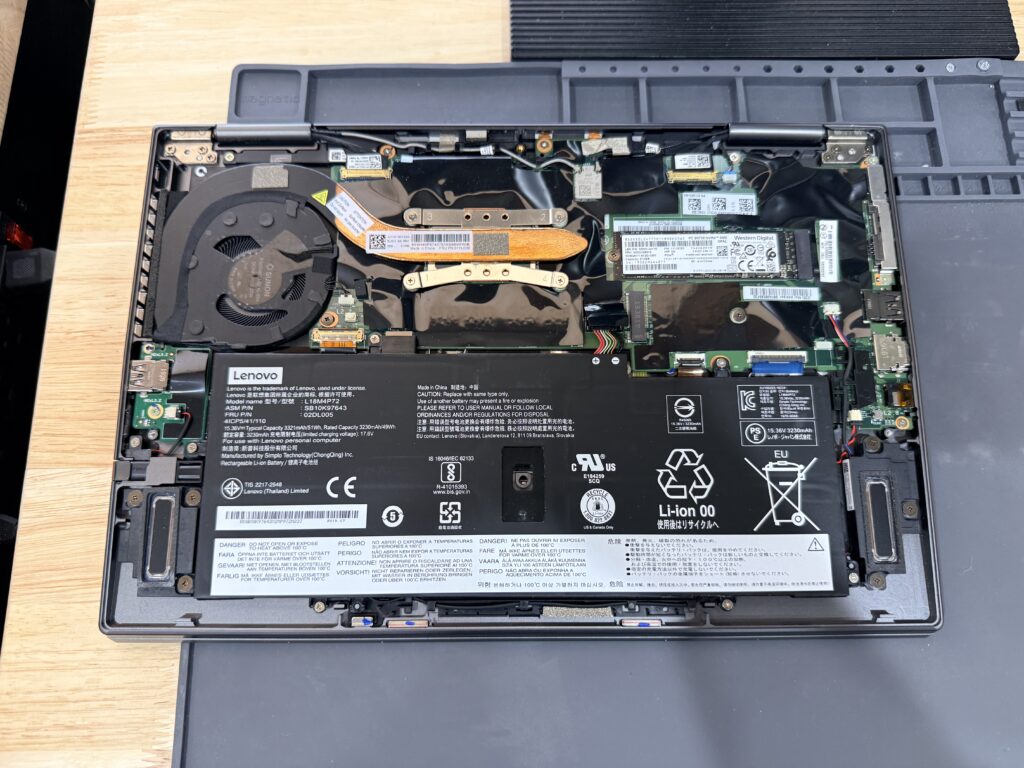
A gaming laptop that overheats and shuts down usually has one of two problems, and often both: the cooling system can’t move heat away from the CPU and GPU, or something is making them run hot when they shouldn’t. Cleaning the fans only partly fixes the first problem, and doesn’t touch the second.
We see this constantly on HP Omen, Lenovo Legion, ASUS ROG, MSI, and Acer Predator machines. Gaming laptops pack desktop-class heat into a chassis an inch thick, so they have almost no margin.
The signs it’s heat, not something else
- The screen goes black and the laptop restarts on its own, or you have to hold the power button.
- Fans run loud even at idle or on the desktop.
- Games stutter after 10–20 minutes, then recover when you pause.
- The keyboard deck or bottom panel is too hot to rest your hand on.
The four real causes
- Dried-out thermal paste. The paste between the processor and the heatsink breaks down over 2–3 years, faster under heavy gaming. Once it’s dry, heat stops transferring efficiently, even with spotless fans.
- Dust packed in the heatsink fins. Blowing compressed air through the vents moves surface dust. The mat packed against the heatsink fins inside usually needs the bottom panel off to remove.
- Something running the CPU hard in the background. Malware, crypto-miners, and runaway background processes can pin the CPU at high usage while you’re doing nothing. If your laptop overheats when you’re not gaming, suspect this first.
- Blocked airflow. Using the laptop on a bed, couch, or lap blocks the bottom intake vents on most gaming laptops.
What you can check at home
- Open Task Manager (Ctrl + Shift + Esc) at idle. If CPU usage sits above 20–30% with nothing open, something is running that shouldn’t be.
- Check temperatures with a free tool like HWMonitor. Idle temps above 70°C, or gaming temps pinned at 95°C or more, point to a cooling problem.
- Use the laptop on a hard, flat surface and see whether the shutdowns stop.
- Check the manufacturer’s control app (Omen Gaming Hub, Lenovo Vantage, Armoury Crate) for a performance mode that’s holding the fans back.
Don’t keep gaming through repeated thermal shutdowns. The heat cycling wears out solder joints and batteries.
A real one from our bench
An HP Omen came in going black and restarting, often when it wasn’t even gaming. The fans had already been cleaned. We found two causes stacked together: about 330 malware traces running the CPU hard in the background, and thermal paste that had broken down. We replaced the paste, cleaned the cooling system, removed the malware, and optimized the operating system. Approved on a Wednesday, ready the next day. Read the full case study.
When to bring it in
If temperatures are high at idle, or the shutdowns continue after you’ve fixed airflow, it needs a bench. Repasting a gaming laptop means a full teardown, and some models use liquid metal or fragile ribbon cables that are easy to damage.
Our diagnostic is $60 with a written quote within 24 hours, and nothing gets done without your approval. Virus and malware removal is a flat $130.
Outside the Kansas City area? Mail-in repair works nationwide, with insured return shipping.
FAQ
Will a cooling pad fix it? A cooling pad lowers temps a few degrees. It won’t fix dried paste, packed fins, or malware.
How often should a gaming laptop be repasted? Every 2–3 years for a laptop that games regularly, or whenever temperatures climb with no other explanation.
Can overheating damage my laptop? Yes, over time. Repeated heat cycling stresses solder joints and shortens battery life.